
How to Log in to AvenPing?
Logging into AvenPing is the first step to accessing your account and managing your communications seamlessly. Whether you’re an existing user or returning after some time, this guide will walk you through the login process, highlight common issues, and provide troubleshooting solutions.
INFO
Make sure your account is verified. If you didn’t receive a verification email during sign‑up, check spam/promotions or resend from the login page.
Step-by-Step Guide to Log in
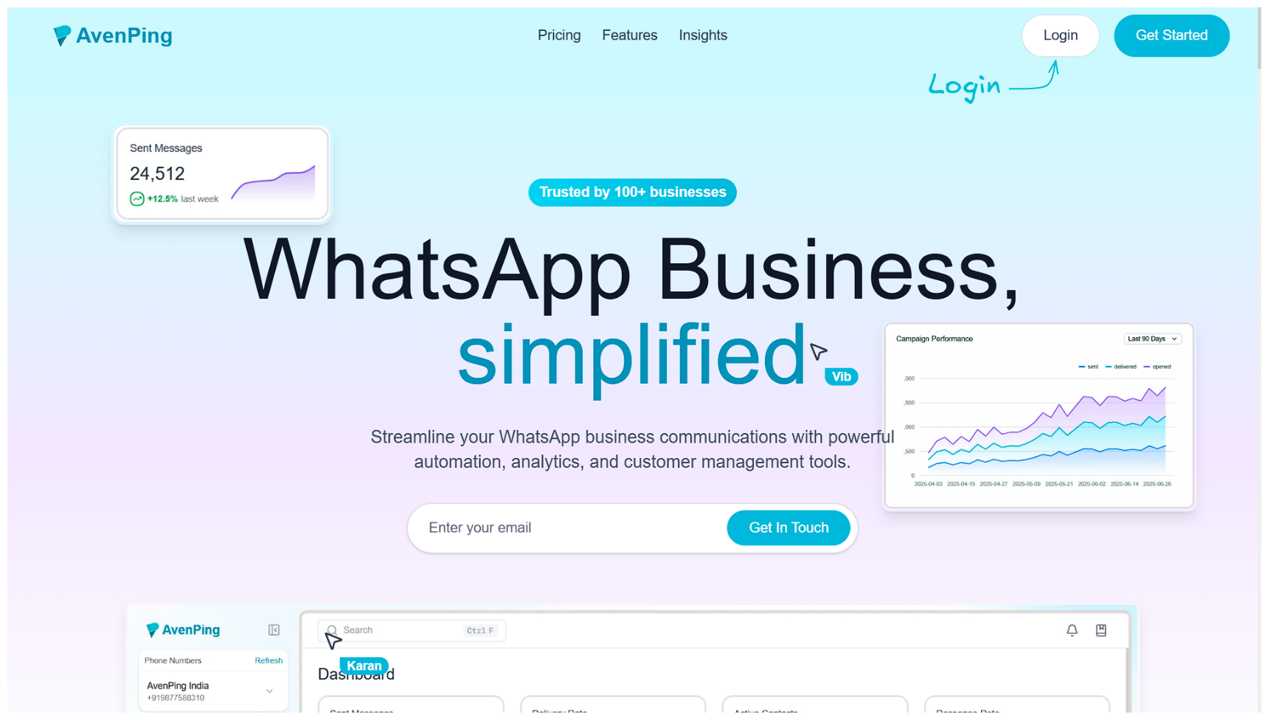
Go to the Login Page
- Visit avenping.com and click Login.
- Alternatively, go directly to app.avenping.com/login.
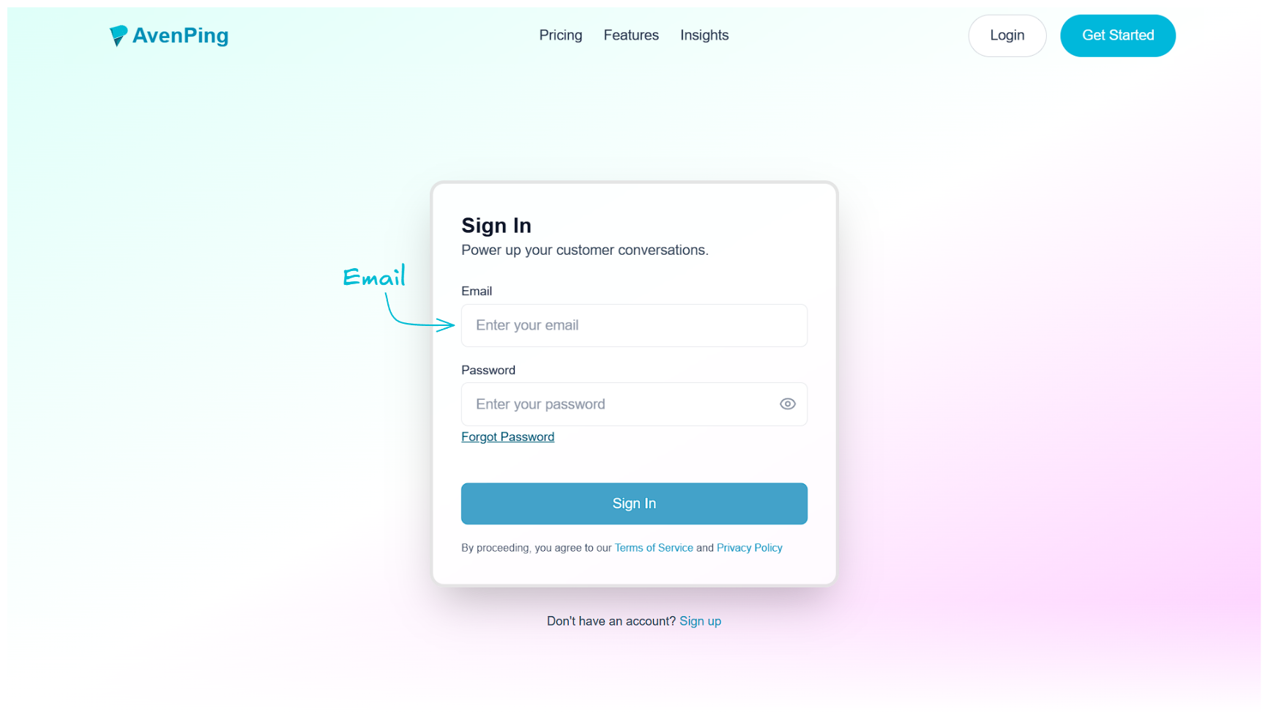
Enter Your Email
- In the email input box, enter the email address you used when signing up for AvenPing.
TIP
If you’re unsure of the registered email, check your inbox for the AvenPing welcome or verification email.
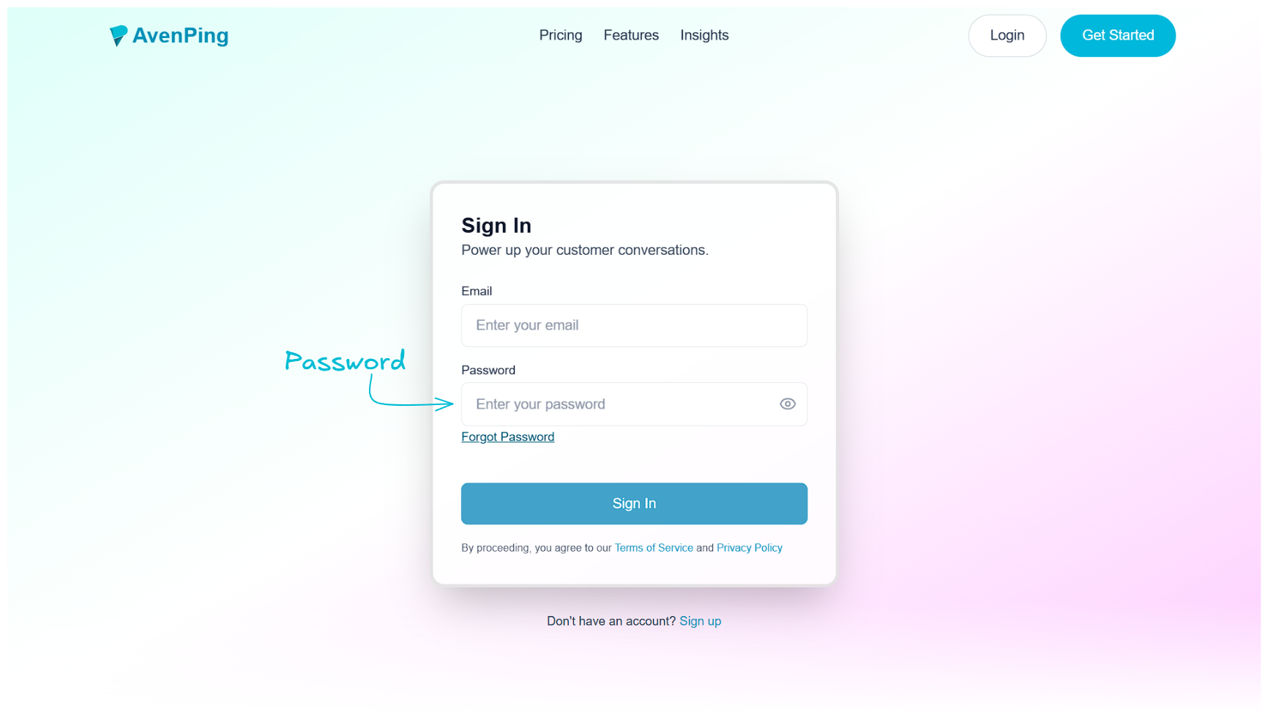
Enter Your Password
- In the password input box, type your account password.
- Note: If you enter an incorrect password, the system will display an error: “Invalid credentials, password not matched.”
TIP
Use a password manager to reduce login errors and enable device sync. This also helps generate strong, unique passwords.
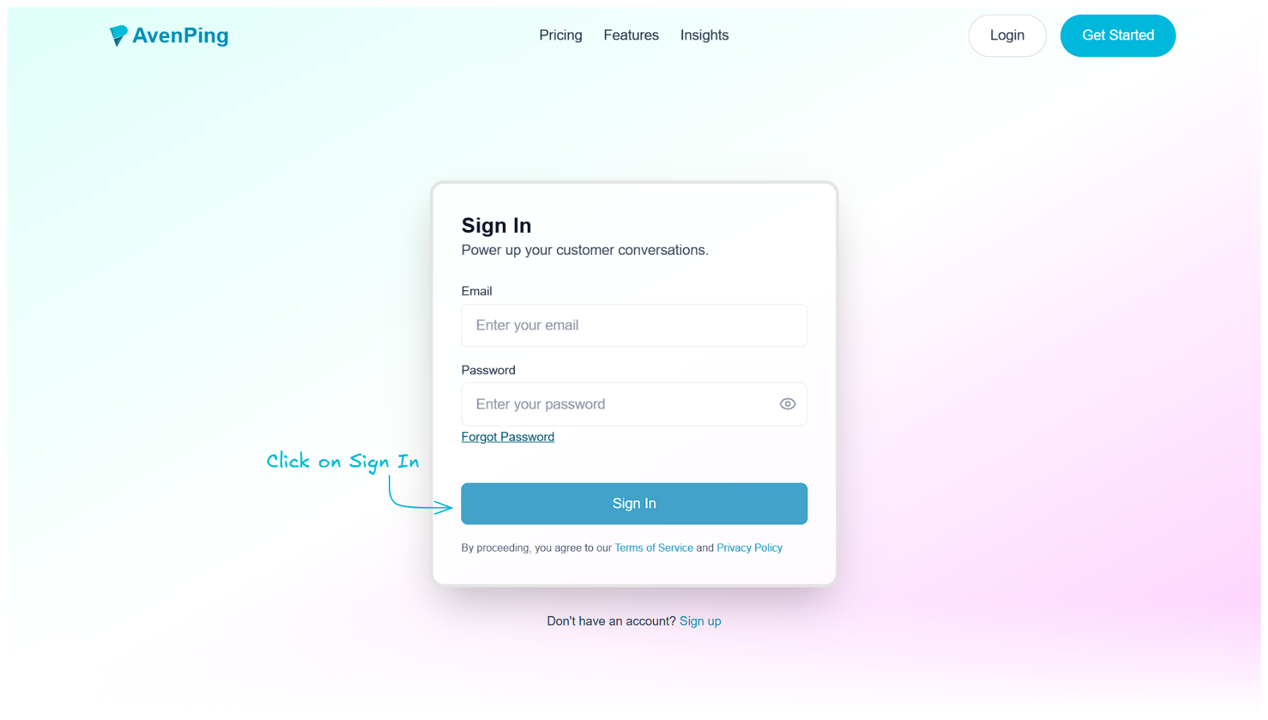
- Click the Login Button
- Once your credentials are entered, click Login to access your account.
- Note: If either the email or password is incorrect, the system will show: “Invalid credentials, user not found.”
Troubleshooting Login Issues
- Forgot Your Password? Use the “Forgot Password” option on the login page to reset it.
- Wrong Email? Ensure you’re entering the same email you used during sign-up.
- Browser Cache Issue? Clear your browser cache or try logging in from a different browser.
WARNING
Multiple failed attempts may trigger temporary rate limits. If locked out, wait a few minutes before trying again or use "Forgot Password".
Best Practices for Secure Login
- Always use a strong password containing uppercase, lowercase, numbers, and special characters.
- Avoid logging in on public or shared computers without logging out afterward.
- Enable two-factor authentication (2FA) if available for added security.
DANGER
Never share your password or 2FA codes. AvenPing support will never ask for them.
Frequently Asked Questions (Q&A)
Q: What should I do if I see “Invalid credentials, user not found”?
A: This means the email entered is not linked to any AvenPing account. Double-check your email or try registering again.
Q: Can I log in using my phone?
A: Yes, AvenPing is mobile-friendly. You can log in using your phone’s browser at app.avenping.com/login.
Q: How many devices can I stay logged in on?
A: You can stay logged in on multiple devices, but for security, avoid sharing your credentials.